
Creating a location code is extremely easy and quick so let’s take a look at what you need to create your own Location QR code with ConnectQR.
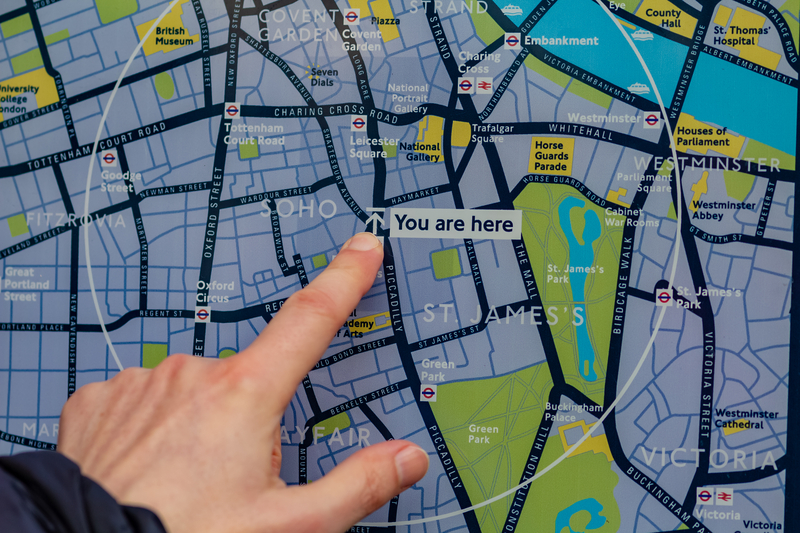
Sharing locations digitally is now a natural expectation for many people. If you want people to discover your business or if you want to share your event venue with a large number of people, a map location is preferred over a written address.
Dynamic QR codes can help speed up this entire process by making sharing and receiving this information much more convenient, leading to more engagement and more visits.
Creating a location code is extremely easy and quick so let’s take a look at what you need to create your own Location QR code with ConnectQR.
1) After logging into your ConnectQR account, click on “Create QR” and then choose between “Dynamic QR” or “Static QR”. For now we’ll select “Location” under “Dynamic QR”.
2) Pick a name for your new QR code and enter it into the “Name Your QR” box. Add a name for your QR code for future reference. Add tags for your new code in the “Tags” box. These tags help you search for QR codes and others like it in the future.
3) Now you need to add the location by clicking on the “Search your location” field and entering the location name. It will take a second to populate but once it does, you can simply choose your location. If it doesn’t appear in the selections, you can manually enter coordinates in the “Latitude,Longitude” field below. Remember to add a ‘,’ between your coordinates.
4) Done! You can now download the QR code in the file format of your choice (JPG, SVG, PNG) and use it immediately. Click on “Access My ConnectQR” edit or check the analytics for your new dynamic QR code!
5) You can continue to customise your QR code by choosing between “Customise QR Code” and “AI QR Code” under the “Additional Options” heading. If you select “Customise QR Code”, you can customise your QR code’s appearance and even add your logo to it. Our “AI QR Code” feature allows you to use AI tools to create a truly unique QR code quickly and it is available to paid subscribers only.
Ready to create your first QR code? Start free on ConnectQR - no credit card required.
Create dynamic QR codes with real-time analytics. No credit card required.
Start for Free →